




Add or update many employees at once by uploading a spreadsheet. The whole process happens on the Employees page, in a single window.
How to Bulk Upload Employees
- Log into business.grubhub.com. In the top right corner, click the person icon and select Business Account.
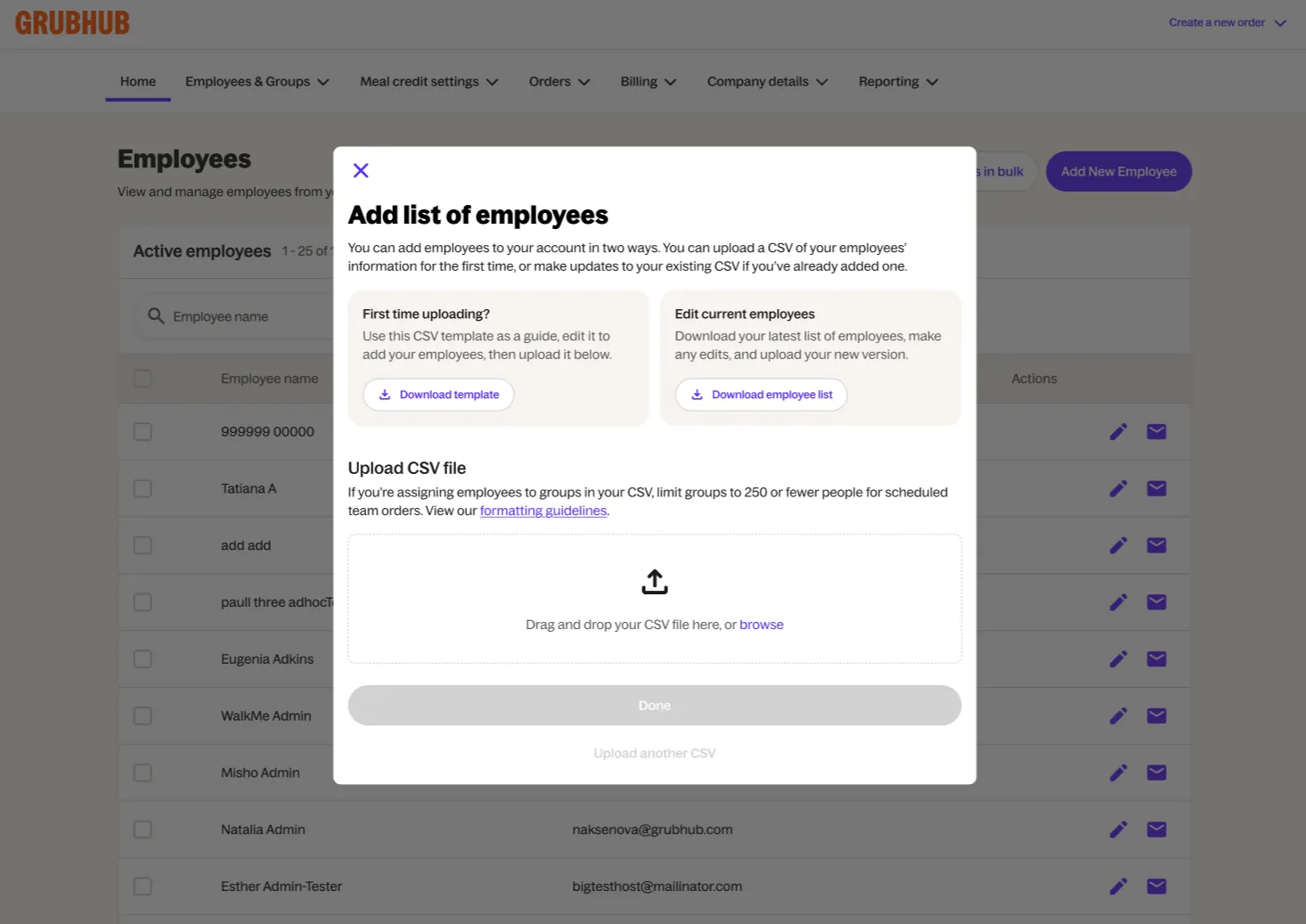
- Select Employees from the Employees & Groups dropdown, then click Upload employees in bulk. The Add List of Employees window opens.
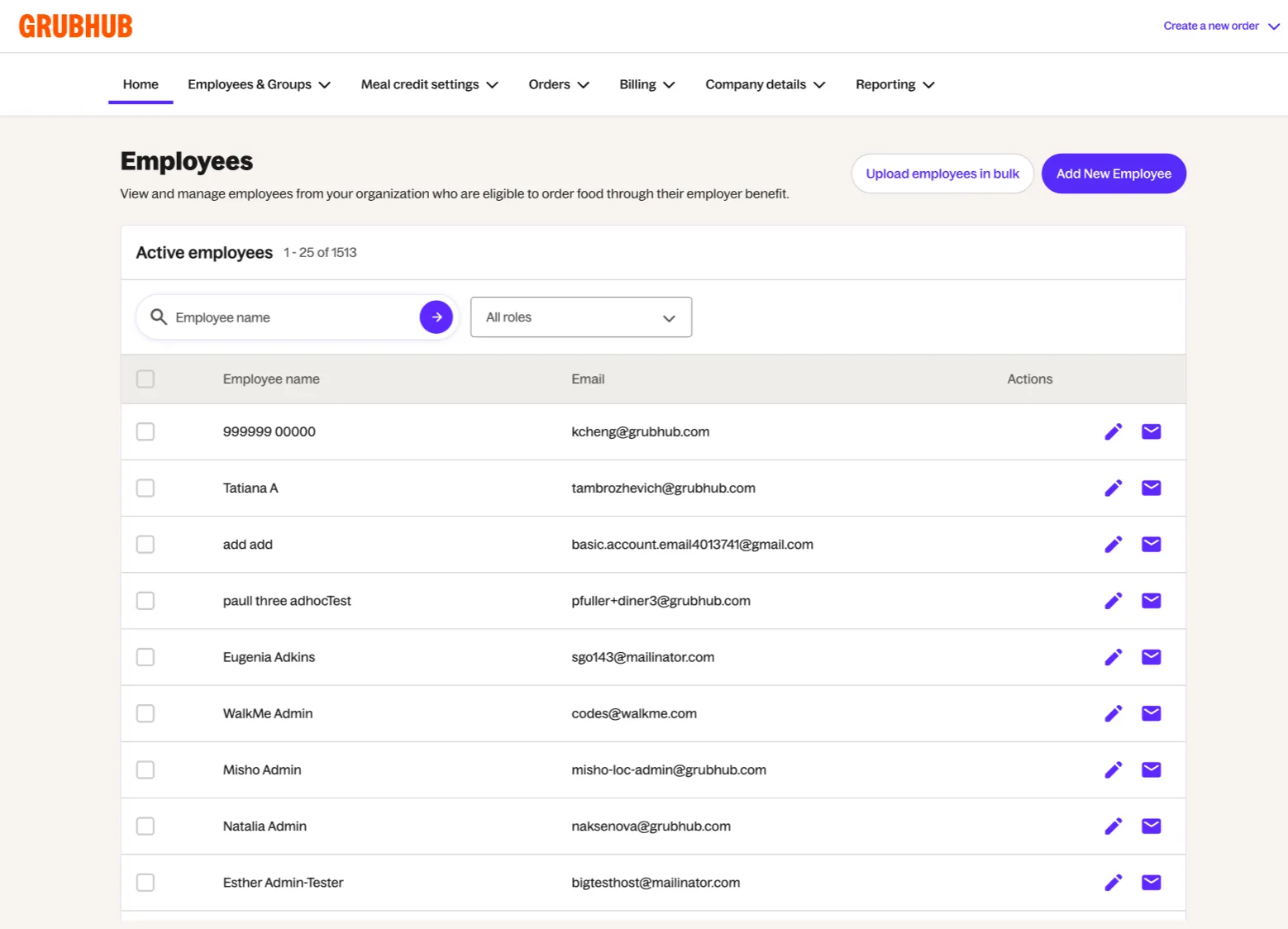
Tip: Use the Role dropdown next to the employee name search to filter your list. Choose All Roles to see everyone, or narrow the list to Standard User, Admin User, or Business Financial Admin.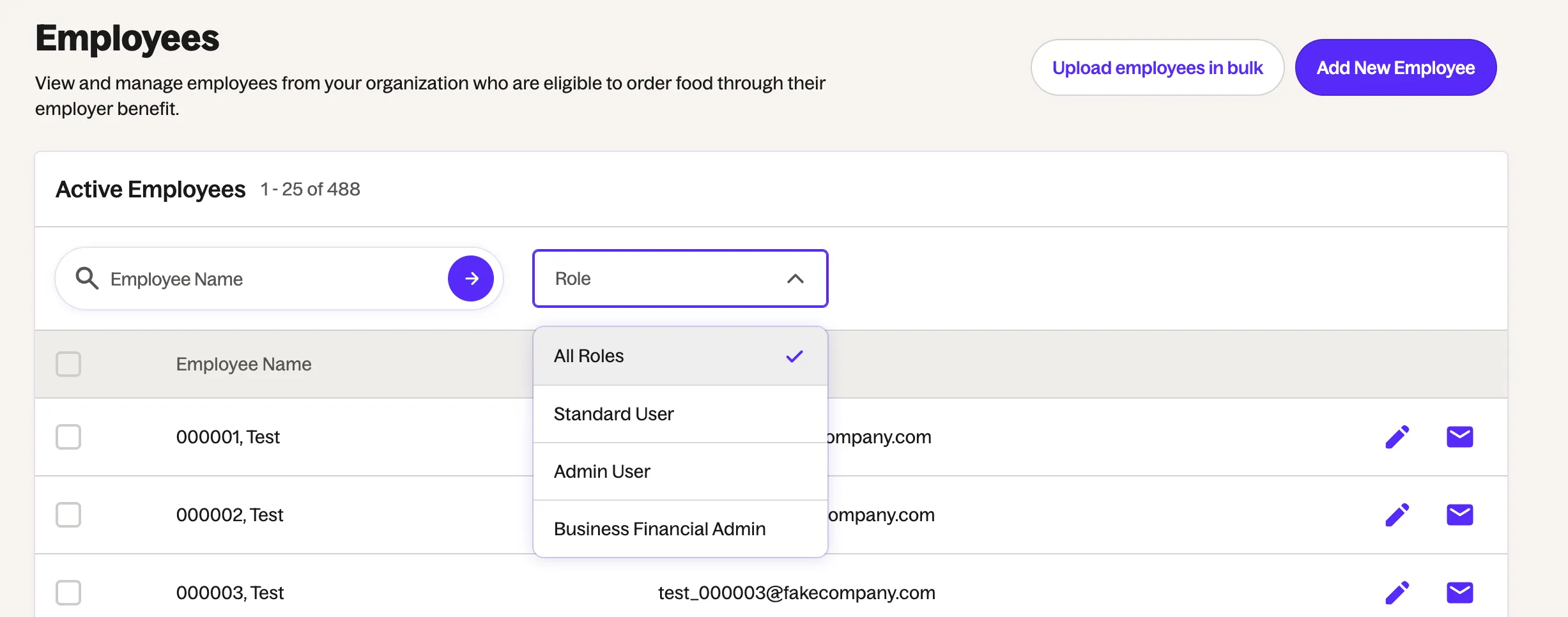
- Choose how you'd like to start. If this is your first upload, click the Download template button and use it as a guide to build your list. If you're updating employees who are already in your account, click Download employee list, make your edits, and upload the new version.
- Fill in your file. See "Filling out the file" below for what goes in each column.
- Save the file as a CSV. This is important: other file types won't upload. (A CSV is a simple spreadsheet format. Excel and Google Sheets can both save to it.)
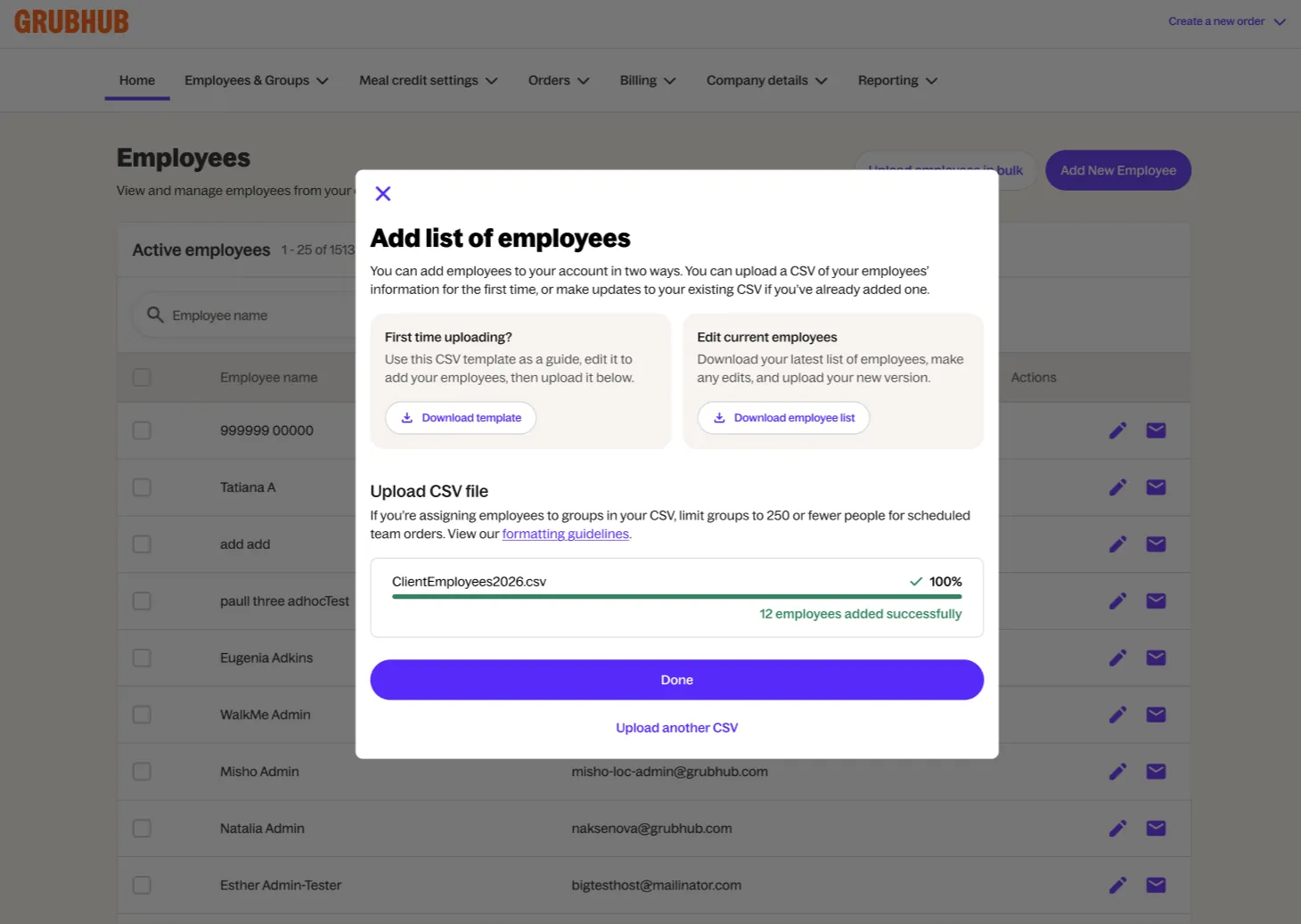
- In the Upload CSV file section, drag and drop your file into the box, or click browse to find it. A progress bar shows the status of your upload. When it finishes, you'll see a confirmation showing how many employees were added. Click Done. To add another file, click Upload another CSV.
- Now that your employees are in their groups, assign the appropriate meal credit. Hover over Meal credit settings, click Meal credits, then click Add meal credit. Customize your meal credit, then click Save Meal Credit. For more detail, see Meal Credits.
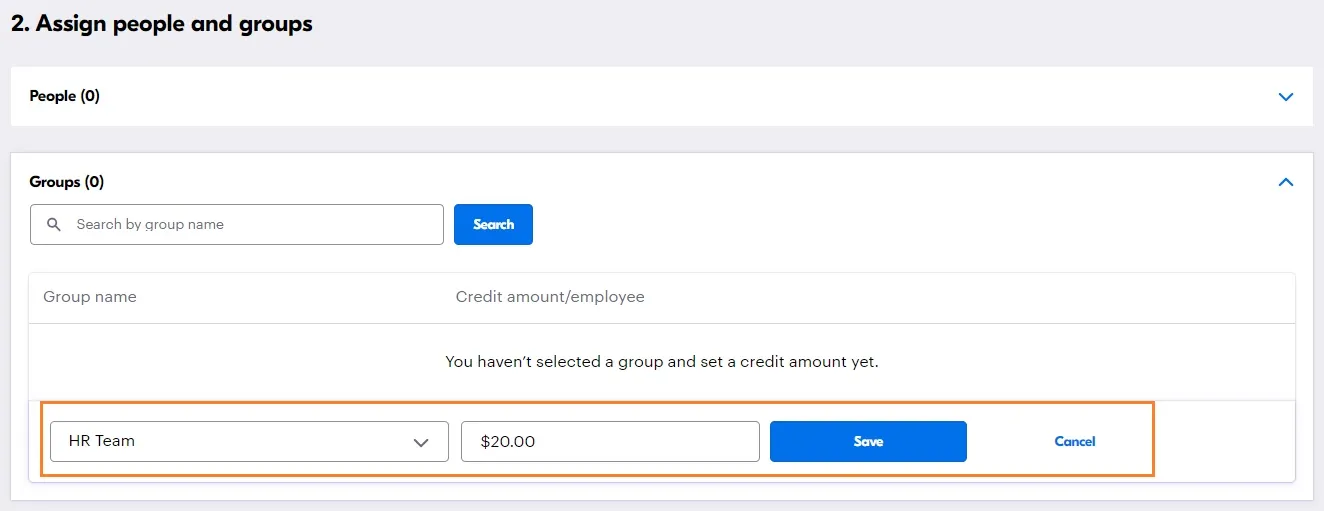
- Scroll down to Assign people and groups. Select your group, enter the credit amount per employee, and click Save.
Your upload progress is saved
If you close the window or leave the page during an upload, you won't lose your place. When you click Upload employees in bulk again, the window automatically shows your most recent upload and its status. There is no extra button to click.
If you want to start over with a different file, click Try again to upload a new one.
Filling out the file
Keep the header row (Row 1) exactly as it is, and don't delete or reorder any columns. Remove the sample information in Row 2, then enter one employee per row.
| Column | Field | Required? | Details |
|---|---|---|---|
| A, B, C, D | First Name, Last Name, Email, Phone Number | Yes for A, B and C. Optional for D. | First name, last name and email are required for every employee. Phone number is optional. If you enter one, it must be a valid U.S. number and can't be toll-free (800). |
| E | Group | Optional | Groups aren't required, but they're helpful for tying a large or specific set of employees to a meal credit. Group names must match your account exactly, including spacing and capitalization, and must be created under Employees & Groups before you upload. To add an employee to more than one group, separate the names with a comma and no spaces. For scheduled team orders, keep each group to 250 or fewer people. |
| F | Employee ID | Optional | A free-text field you can use to filter and analyze data on your invoice and past orders. Examples include a team name or an internal ID. |
| G | Location | Optional, unless your organization is invoiced by location | Keep the header even if the column is empty, or the upload will fail. Enter one location per employee, written exactly as it appears in your business account. If no location is assigned, the employee's location is blank. Locations are created under Company Details and must exist before you upload. |
| H, I | Department, Sub Department | Optional, unless your organization is invoiced by department | Keep both headers even if the columns are empty, or the upload will fail. Enter one department per employee, written exactly as it appears in your business account. Employees without a department appear as "unassigned." Departments are created under Company Details and must exist before you upload. Sub Department only applies if sub-departments are set up for your account. If they aren't, leave that column empty. |
| J | Allocation permitted | Optional | Only applies if allocation ordering is turned on for your account. Allocation lets one person place an order for several coworkers and charge each person's line of credit or multiple expense codes. Leave it blank to allow allocations, or enter "yes" or "no." Keep the header either way. |
| K | Delete | Optional | To remove an employee in bulk, enter "Yes" for that employee. Leave this column blank when you're adding employees. |
If your upload has errors
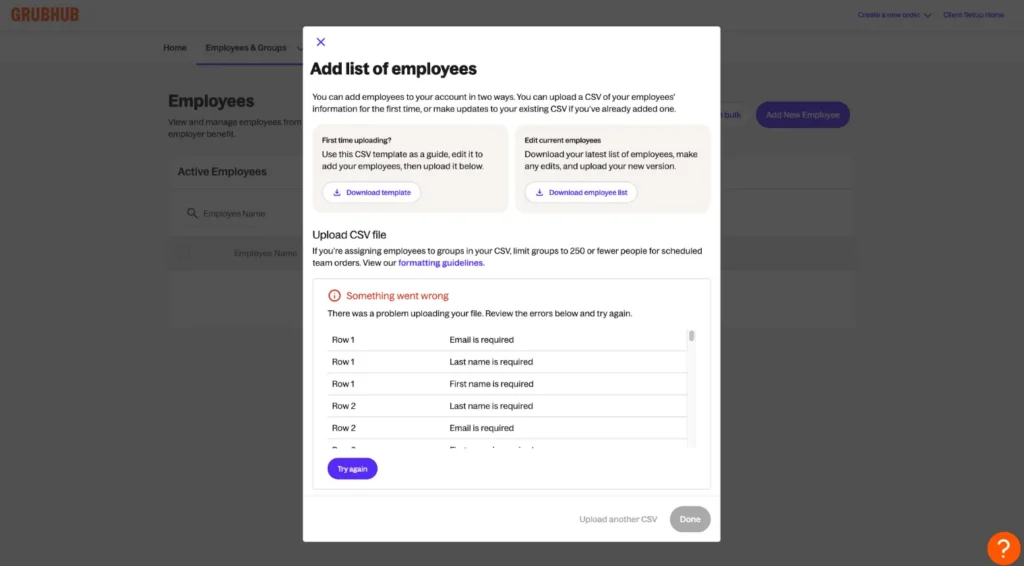
If something is wrong with your file, the window shows a red message that says "Couldn't upload. Please correct the errors below, and try again." Below it, an Errors below panel lists each problem by row. For example, "Row 2: Email is required." Fix those rows in your spreadsheet, save the file as a CSV, then click Try again and upload the corrected file.
Troubleshoot common upload errors
- The file isn't a CSV. Save it again as a .csv file.
- "Incorrect email format." Make sure there's no space after the email address.
- "Last name is required." First name, last name and email are all required. Add the missing information to the row listed.
- "Group is required." Add the employee in the row listed to a group that already exists in your account.
- "Phone number is invalid." Enter a valid U.S. phone number. Toll-free numbers (such as those starting with 800 or 888), numbers starting with 555, and numbers with a nonexistent area code are not accepted.
- Allocation errors. If allocation ordering is on for your account, enter "yes" or "no" in the Allocation column, or leave it blank. "Y" and "N" won't work.
- Headers were changed. The header row (Row 1) must stay exactly as it is and in the same order.
- A column was deleted. Every column in the template must stay in the file, even if it's empty.
- A code begins with a hyphen (-). Add an apostrophe (') at the start of the code.
Need help?
If you have questions or run into issues, our Business Account Support team is here to help. Call (844) 478-2249, option 3, or email bizaccountsupport@grubhub.com.