




Introducing Grubhub for Business Self-Service
Feeding your team just got easier and more flexible. Grubhub has partnered with Balance, a premier B2B financial platform, allowing you to own your experience for you and your team, while ensuring convenient invoicing options for approved users.
Whether you are ordering for a small team lunch or setting up daily meal credits for your entire office, our platform is designed to scale with your business.
Signing up for a Grubhub for Business Self-Service Account is easy and secure.
Simply create an account on the signup page. You can use the same username and password as you do on www.grubhub.com. If you don’t have a Grubhub for Business account yet, create one here.
Step One: Business Details
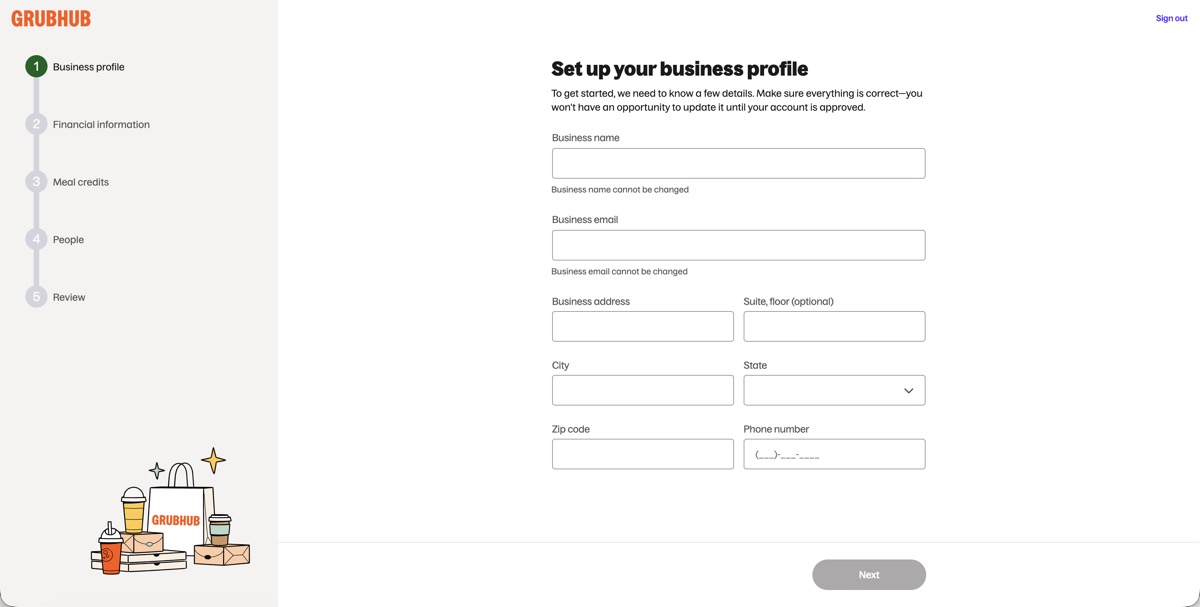
Begin by providing basic business details such as: Business Name, Business Email, Business Address, and Phone Number
Step Two: Financial and Business Verification via Balance
For any questions in this step, please contact [email protected] or click the Balance Chatbox in the bottom right corner
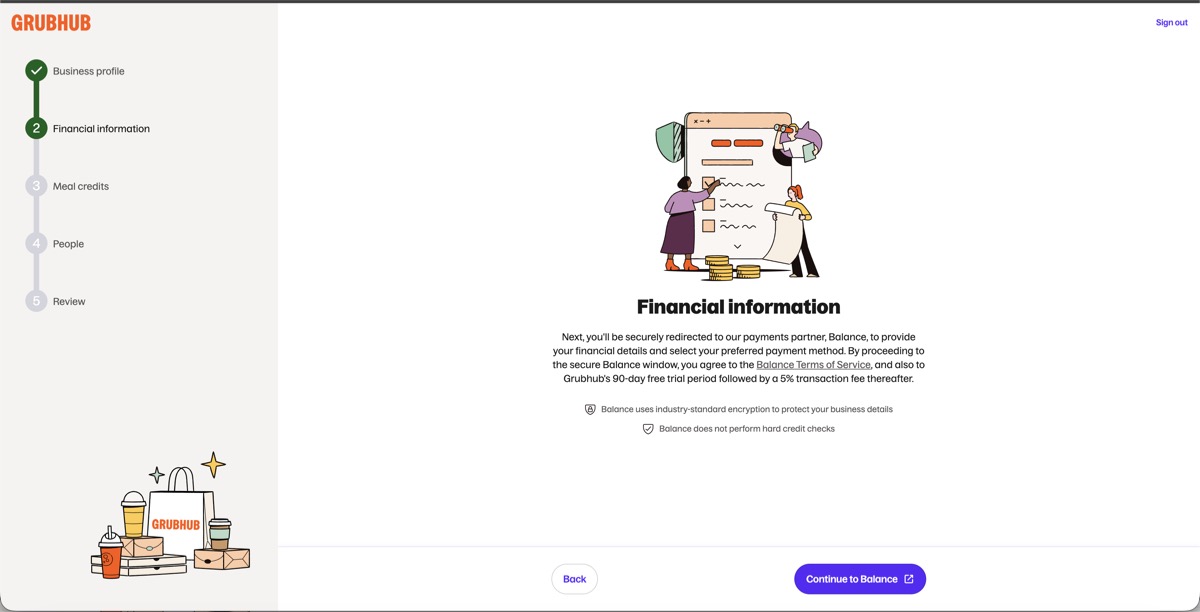
After submitting your basic business details, you will see the above screen to seamlessly move you from the Grubhub platform to the Balance platform via the same window to continue with your business and financial verification steps
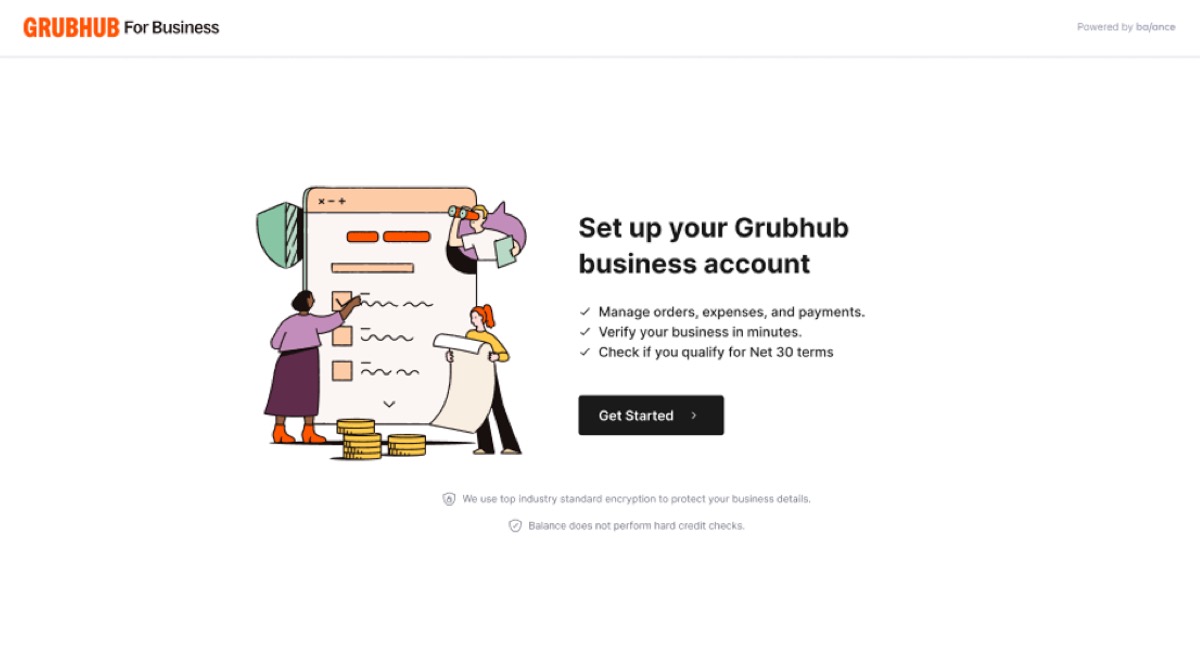
At this point, you will be on the Balance platform, and can click ‘Get Started’ to continue forward
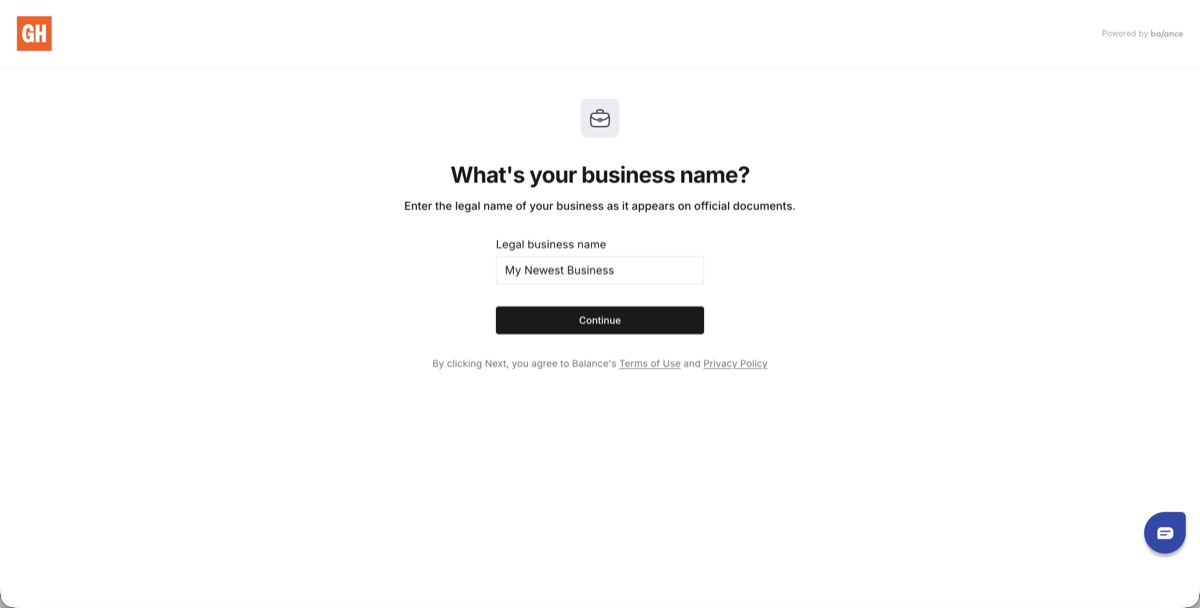
Your business name will auto-populate from what was submitted via Grubhub for Business on Step One
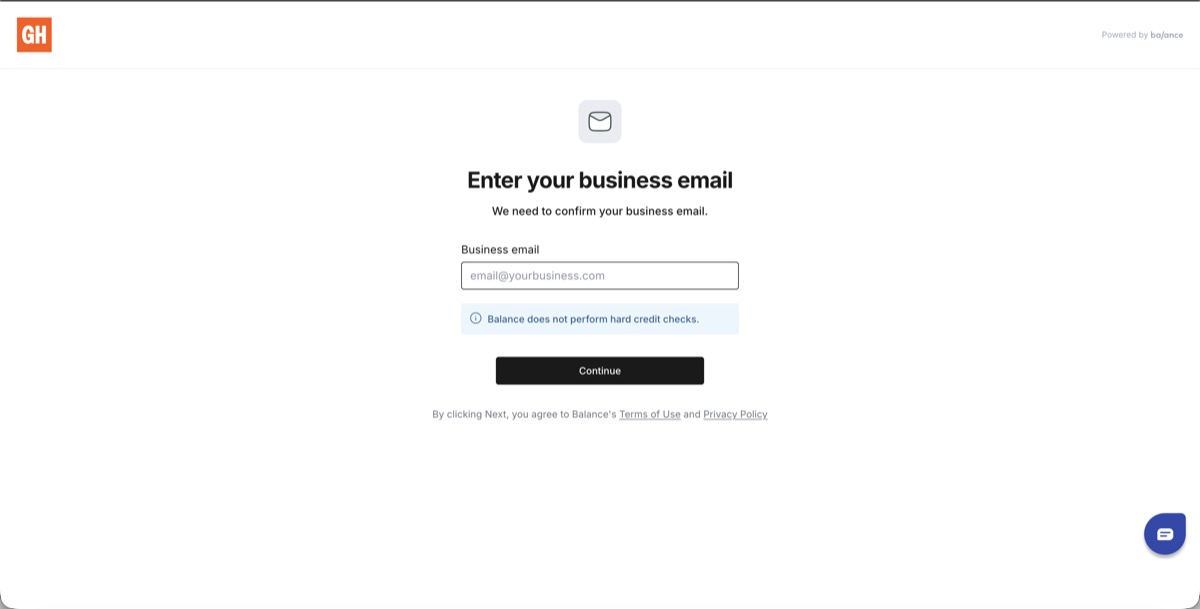
Your business email will either auto-populate or will need to be entered again
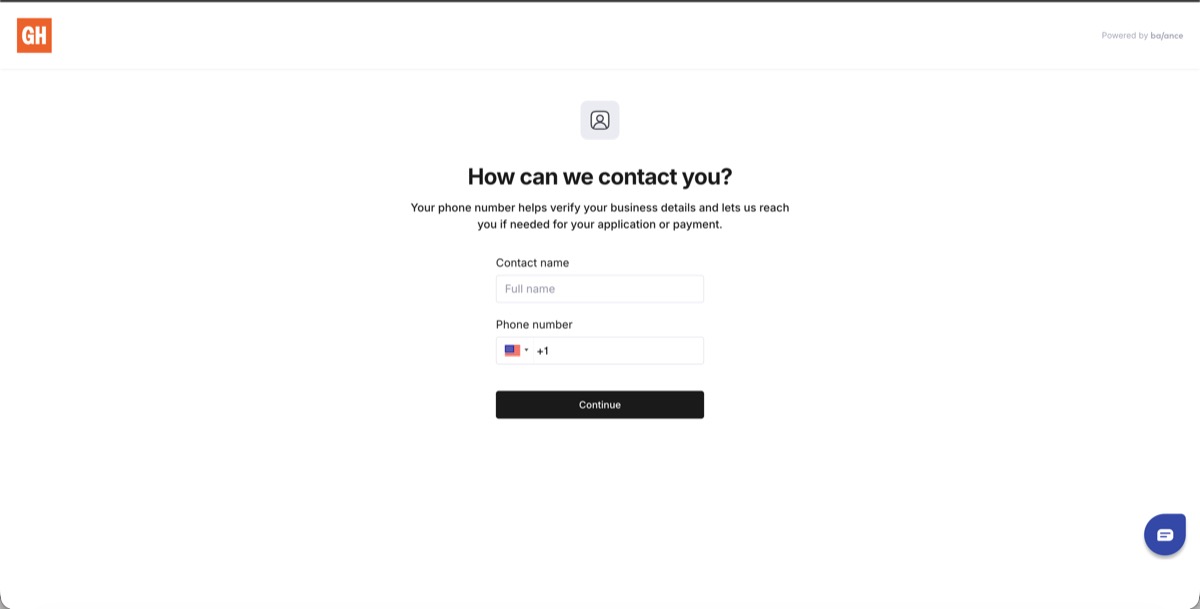
You as the account creator will fill out your Contact Name and Phone Number
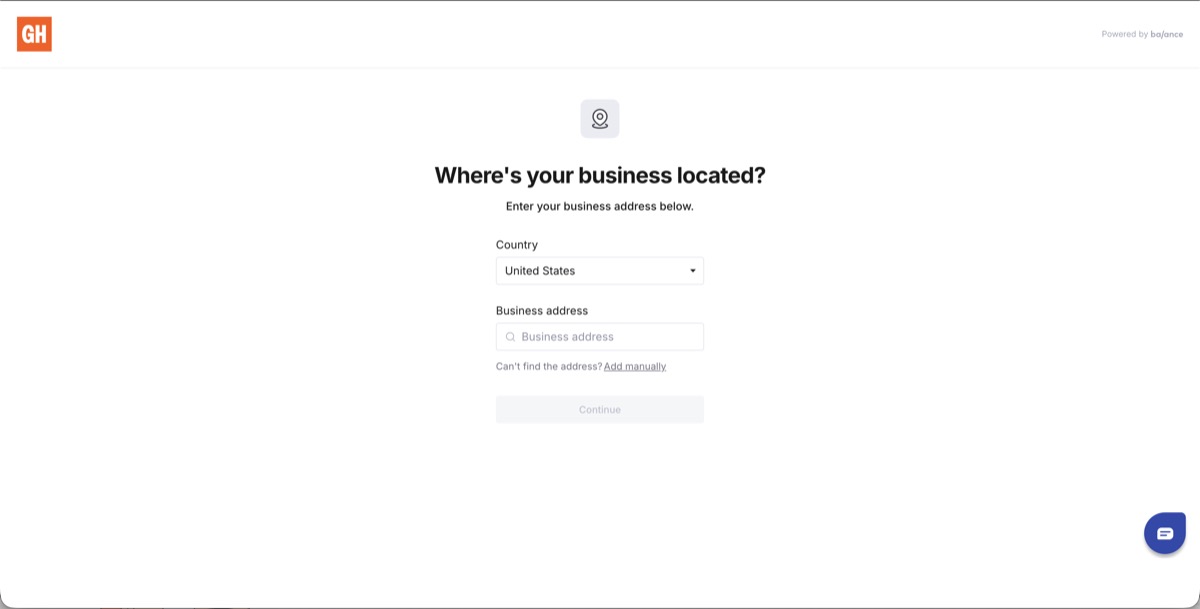
Enter and Confirm your Business Address
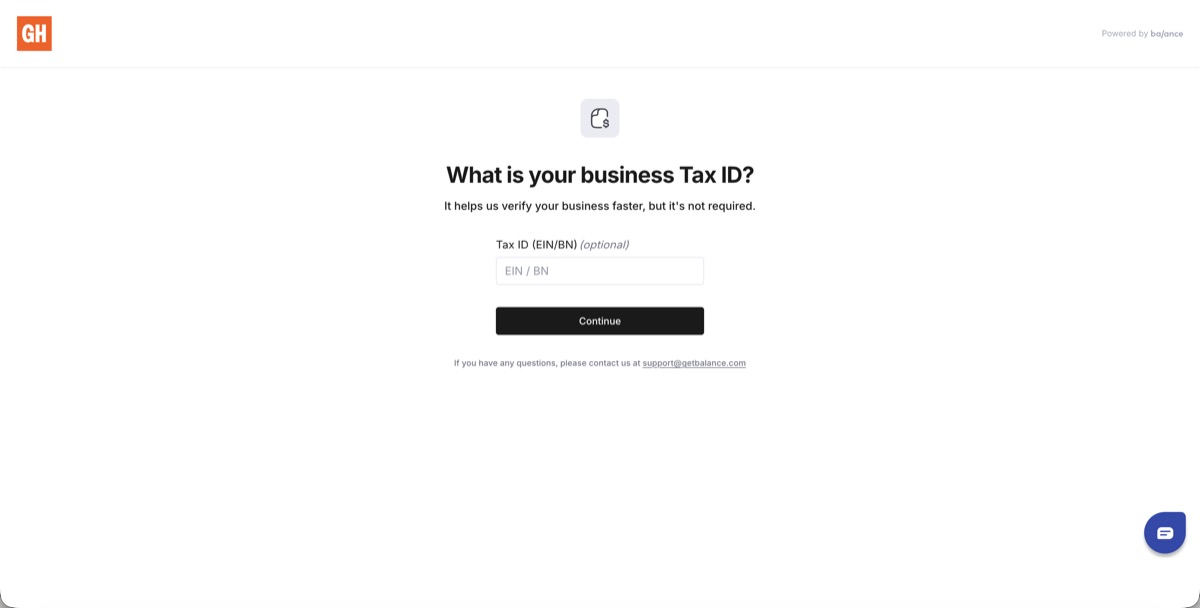
(Optional) You can input your Business Tax ID for faster verification
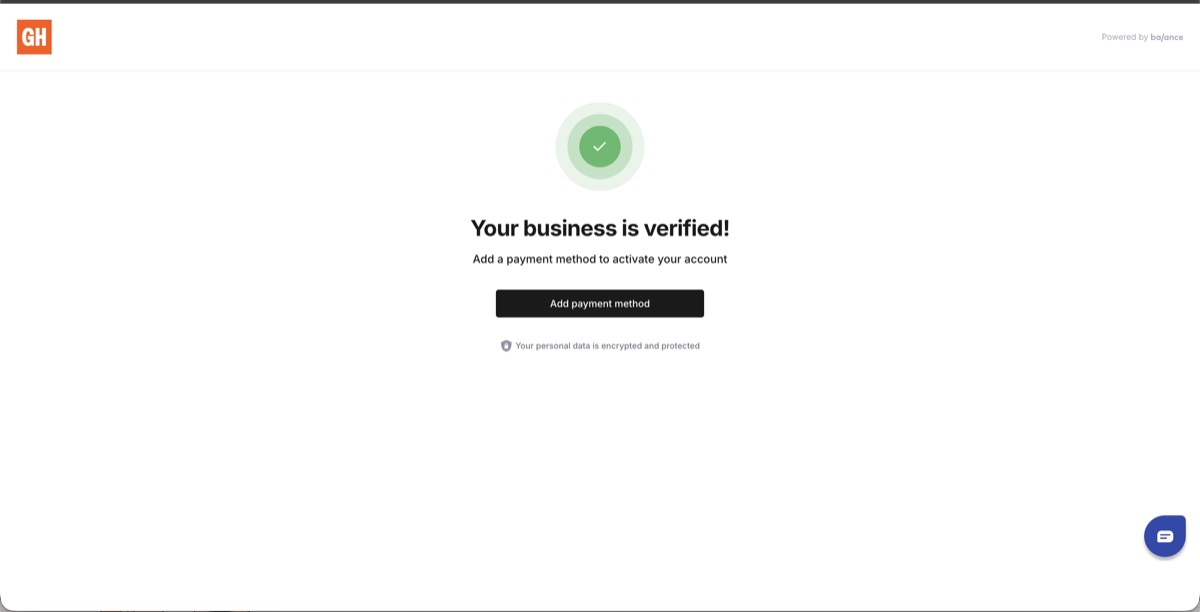
Congratulations! Your business has been successfully verified by Balance Payments. You can move forward to the next screen to input Payment Method
In-Review: If your business enters an ‘In-Review’ status, you may receive an email from Balance Payments to potentially provide any additional information for review and verification. If you have any questions, please contact [email protected] or click the chatbox in the corner
Denied: If your business does not pass the verification step by Balance, your Grubhub for Business Self-Service Account will not be created. If you have any questions on this decision, please contact [email protected]
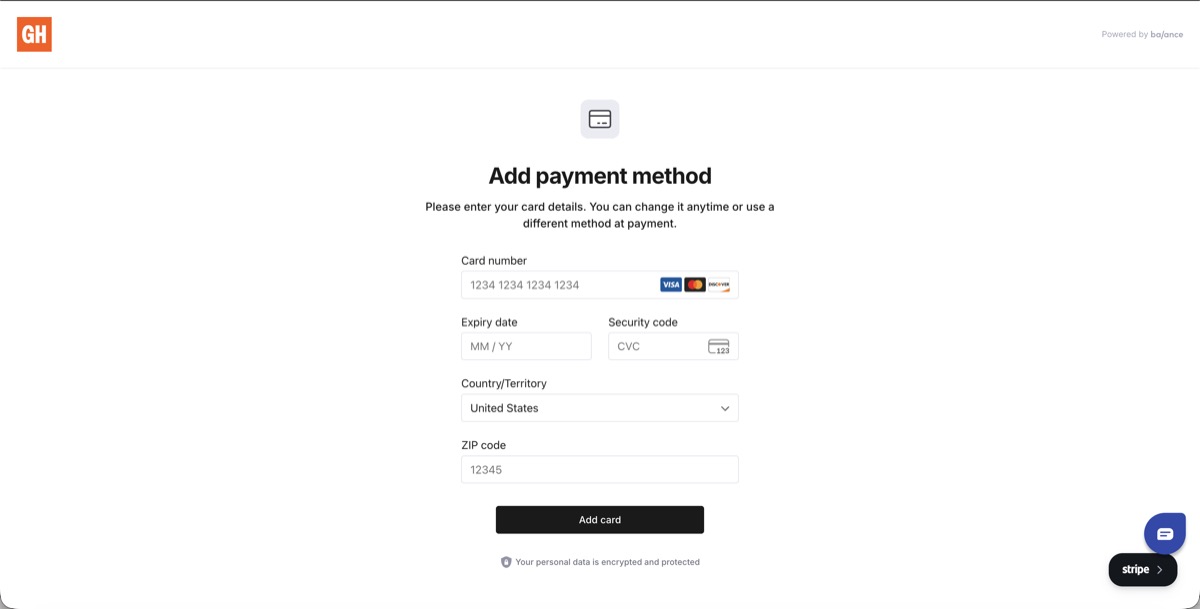
Please input your credit card information for secure verification by Balance. This steps ensures that your payment method associated with your account is valid and legitimate
In-Review: If your payment method enters an ‘In-Review’ status, you may receive an email from Balance Payments to potentially provide any additional information for review and verification. If you have any questions, please contact [email protected] or click the chatbox in the corner
Denied: If your payment method does not pass the verification step by Balance, your Grubhub for Business Self-Service Account will not be created. If you have any questions on this decision, please contact [email protected] or click the chatbox in the corner
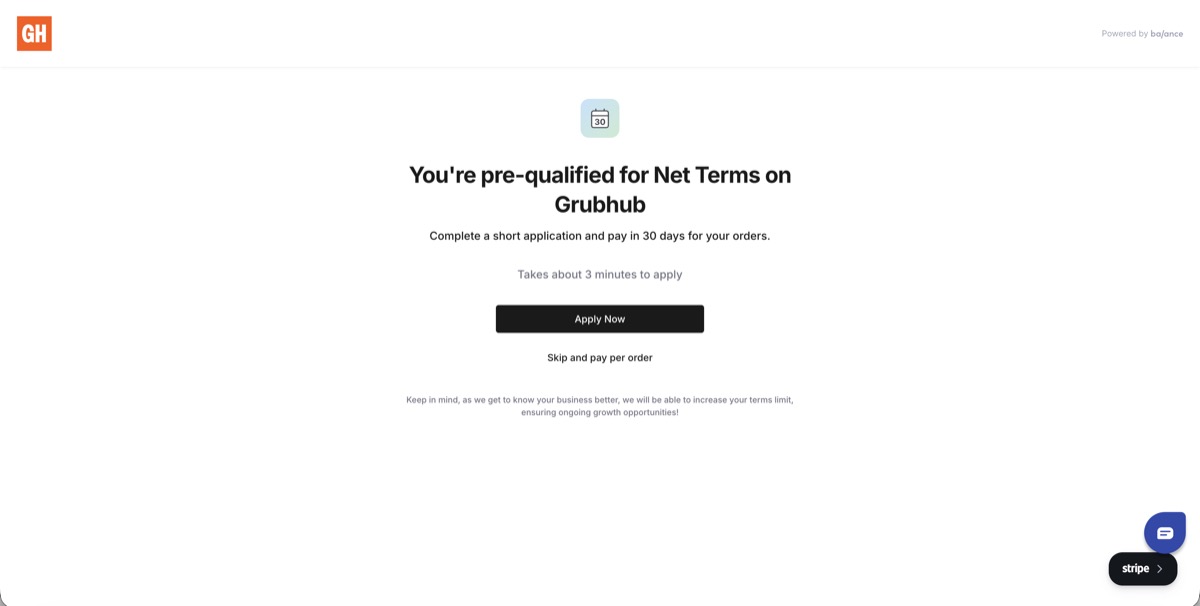
Congratulations! Your payment method has been successfully verified by Balance. At this point, you have the choice to continue with Balance and Apply for Consolidated Invoicing and Net Terms via a soft credit check. If you choose to continue, please press ‘Apply Now’.
If you are unsure or do not want to apply at this time, you can ‘Skip and pay per order’, where you will return back to the Grubhub for Business platform and can continue to finish setup and officially create your account. If you choose to skip, your account will default to ‘Pay per Order’ or ‘Spot Payments’. Here, your verified payment method provided will be used and charged only when an order is placed on your account. For any questions, please contact Balance at [email protected].
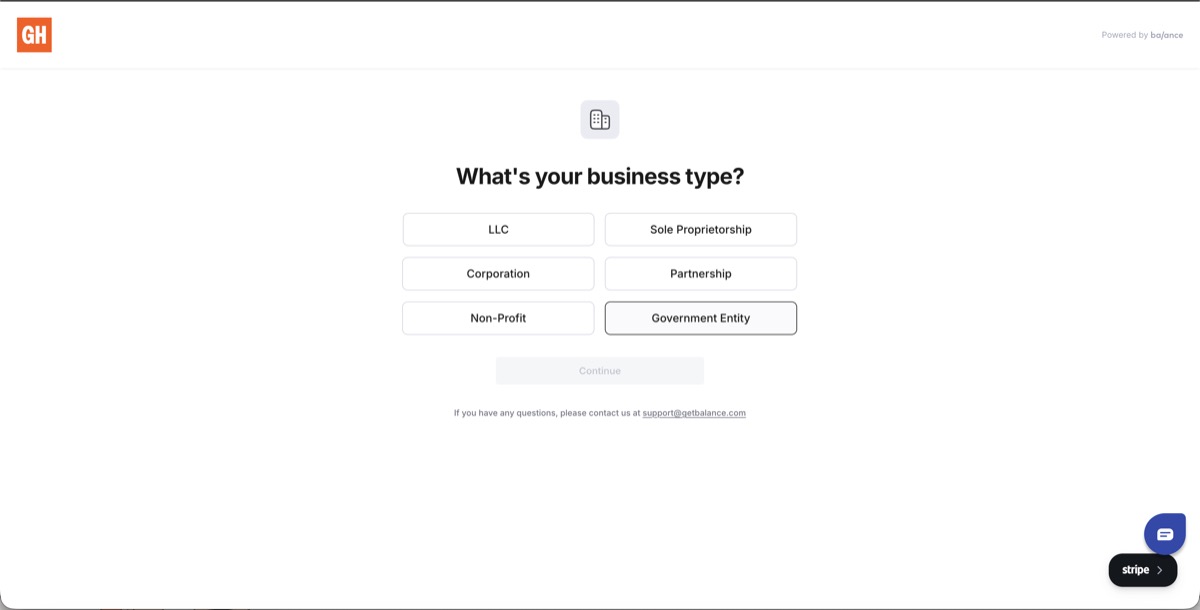
If you choose to continue with Balance, you will provide additional details and information to Balance. Here you will select your Business Type.
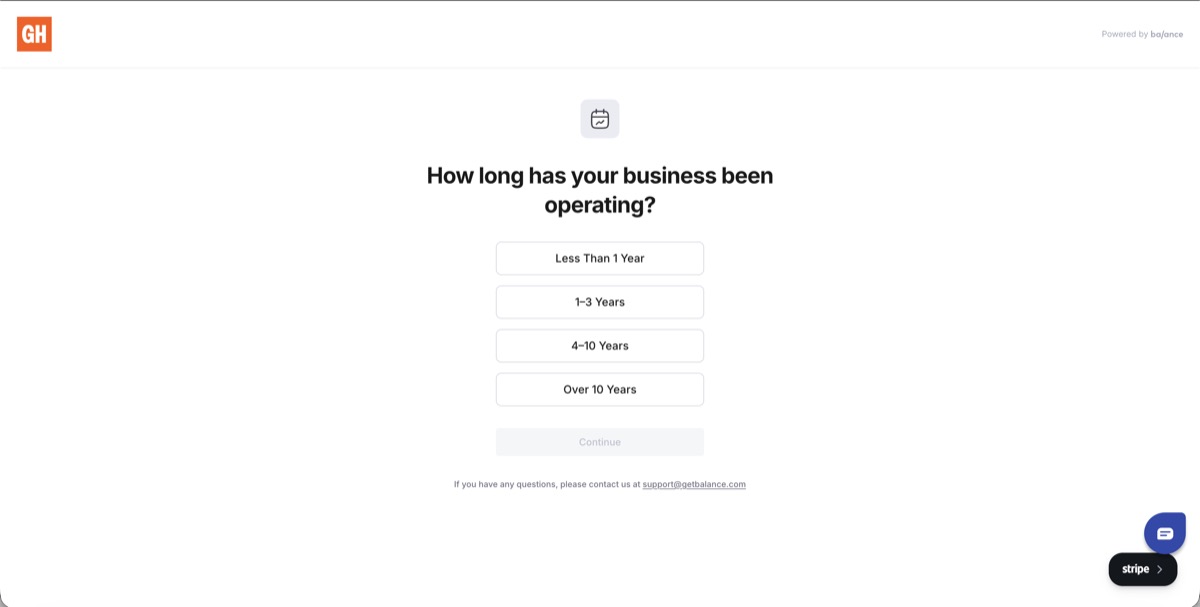
Please select the length of time your business has been operating
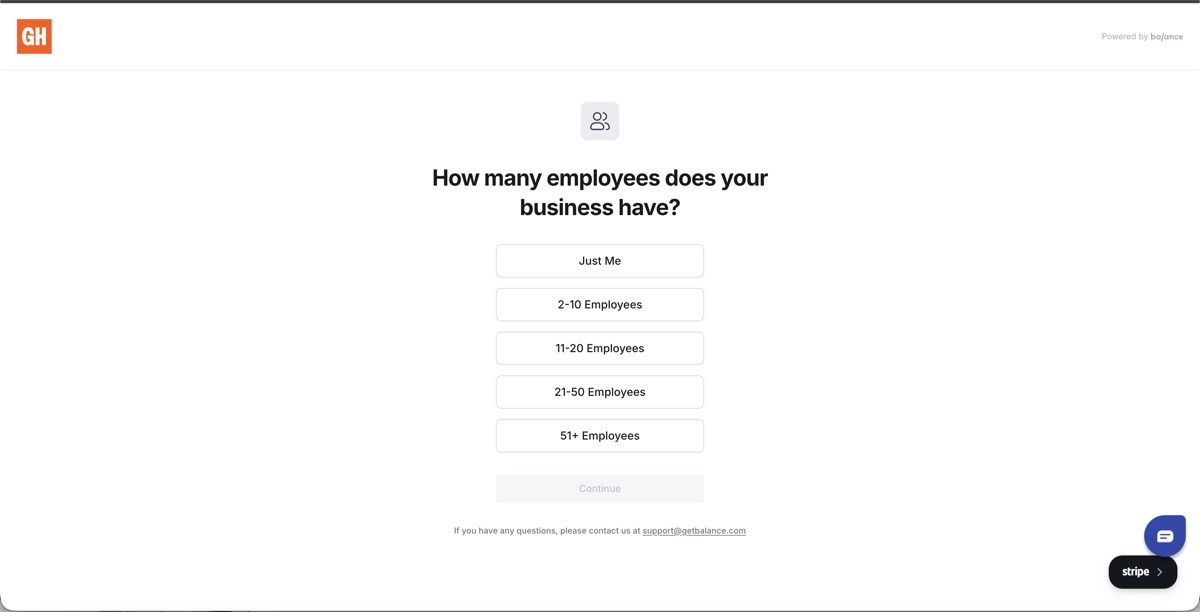
Please select the size of your business by selecting the number of employees your business has
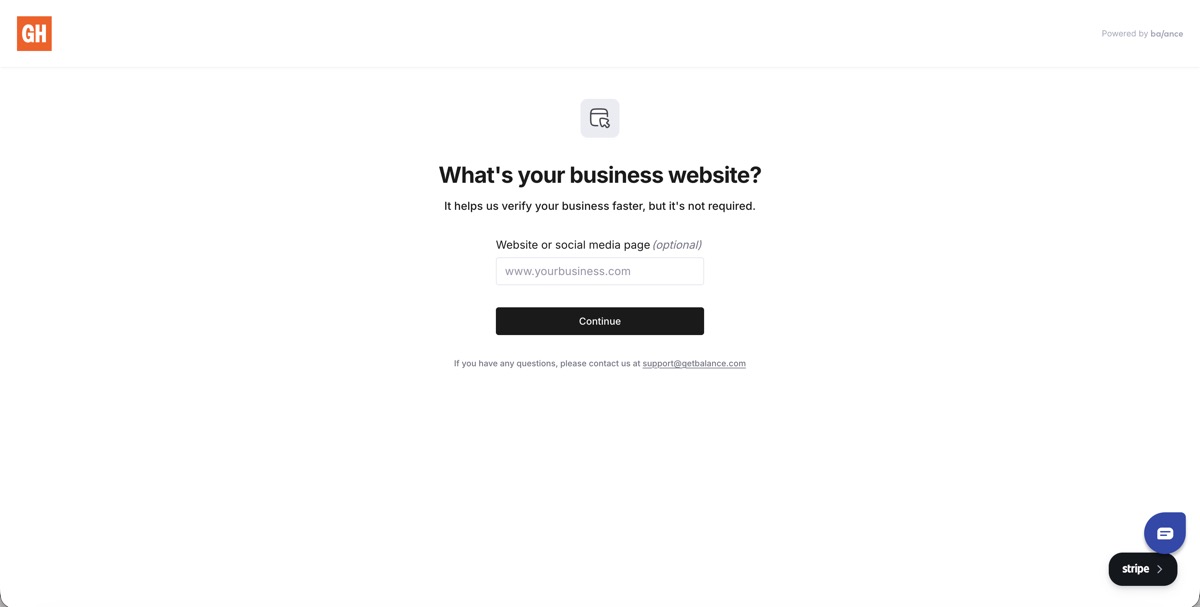
(Optional) If you would like to provide additional details, you can provide a link to your business website or social media page
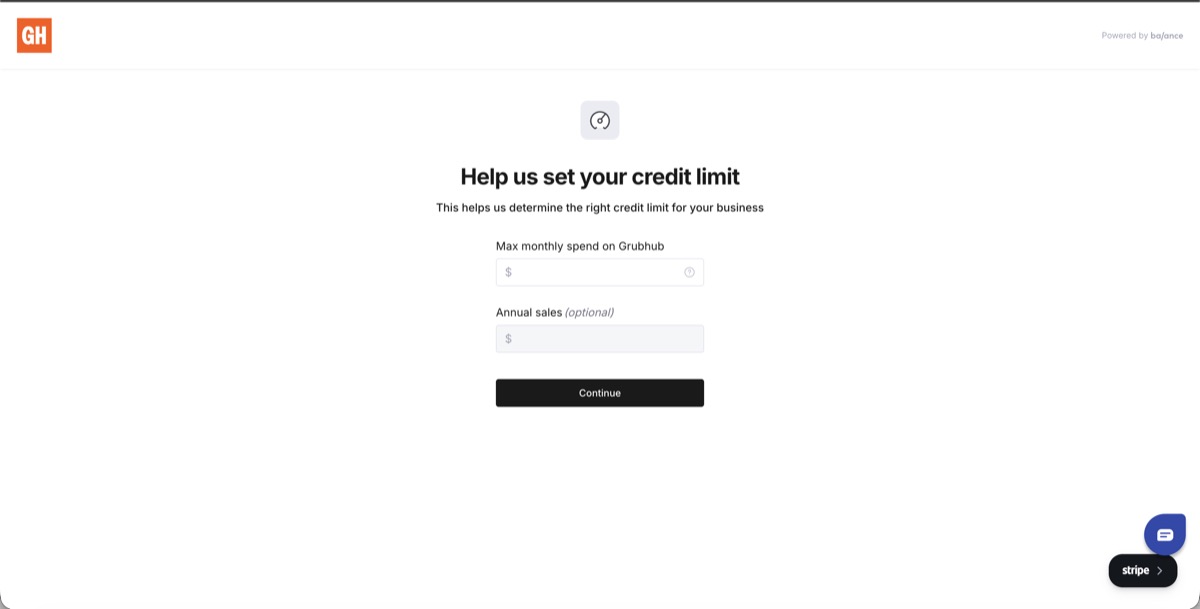
Here, please input the estimated maximum spend that your business will spend per month on Grubhub. NOTE: This does not guarantee if approved that this will be your credit limit
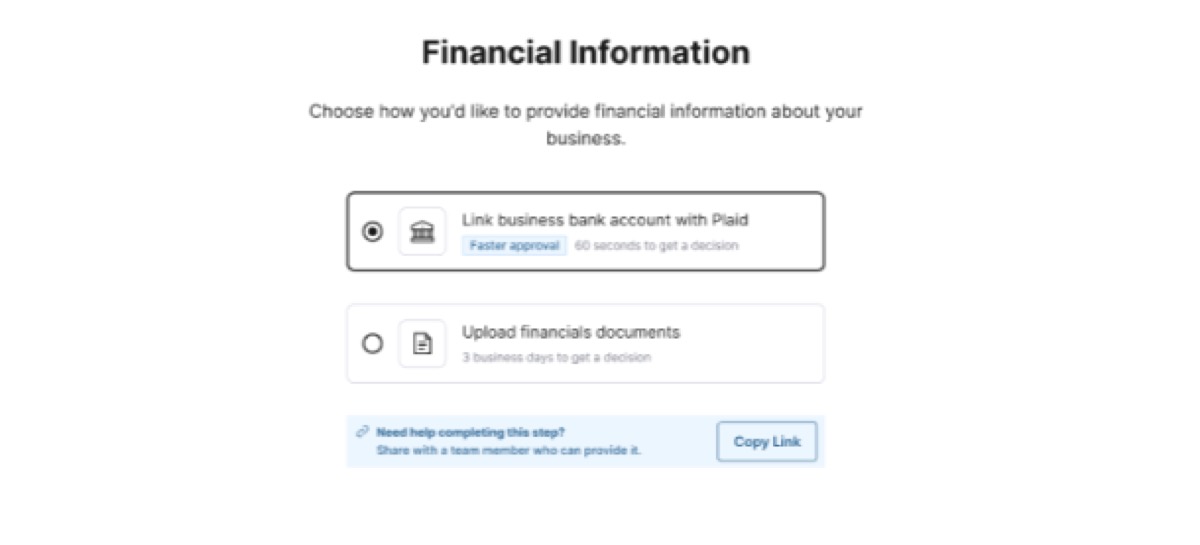
Here, you can link your bank account securely via Plaid through Balance to get a decision within minutes.
If you choose to manually upload your financial documents (last three months of bank statements), please note, it may take up to 3 business days to receive a decision. For any questions, please contact Balance at [email protected].
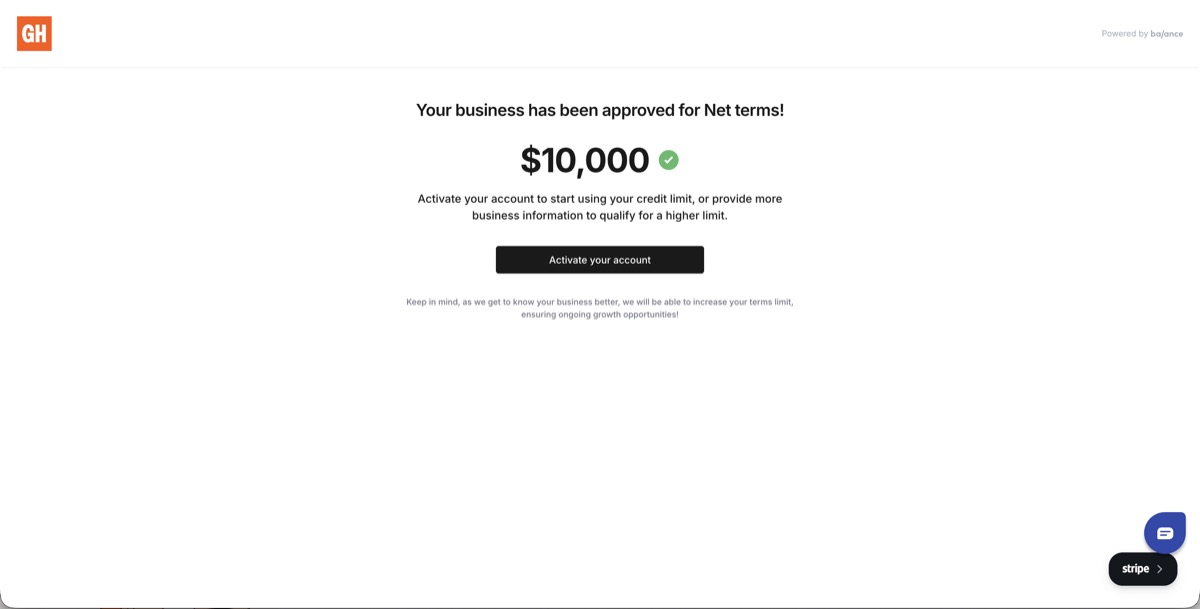
Congratulations! Your business has been approved for Net Terms which includes Consolidated Invoicing and a Monthly Line of Credit for use for your business. To continue with account setup, click ‘Activate your account’. For any questions, please contact Balance at [email protected].
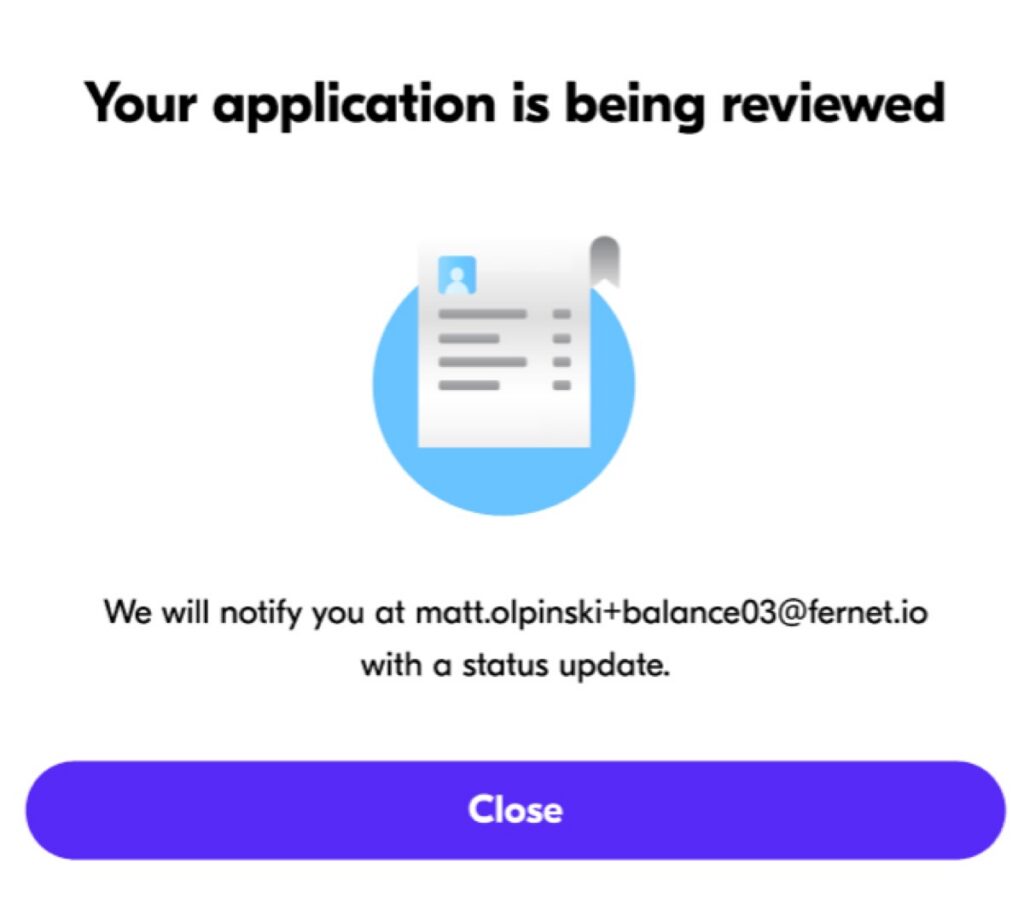
In-Review: If you don’t receive an immediate response, please note that you will be notified about your application status via email from Balance. Additionally, if there is any additional documentation needed for review, you will be notified via email from Balance as well. From here, your account will undergo a manual review for approval or denial. For any questions, please contact Balance at [email protected].
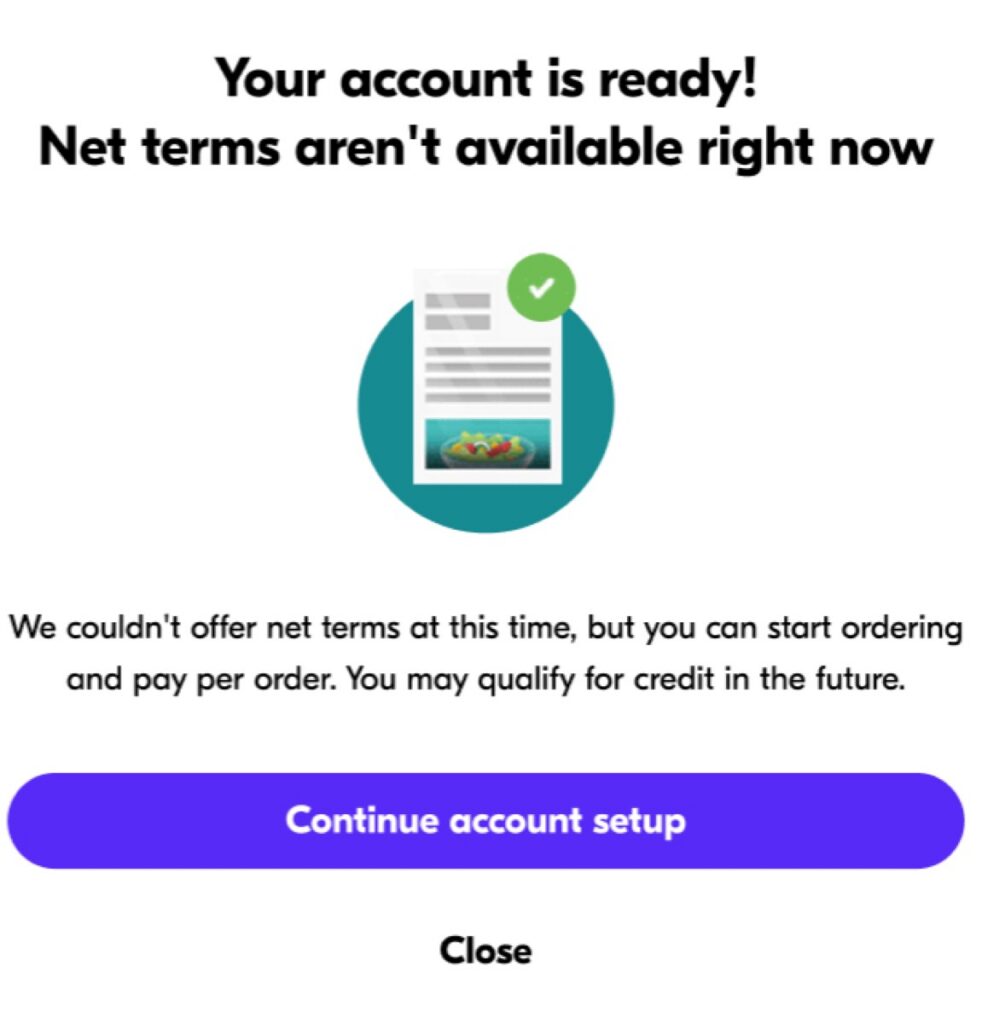
Declined: Unfortunately, at this time, you have not been approved for Net Terms and Consolidated Invoicing from Balance. But don’t worry, you can still finish your account setup with Grubhub for Business and utilize self-service account features for your business via ‘Pay per order’. If you were declined, you will be eligible to re-apply for Net Terms in 90 days. Additionally, your payment history will continue to be monitored by Balance and if eligible, you may be pre-qualified in the future to apply for Net Terms as well. For any questions, please contact Balance at [email protected].
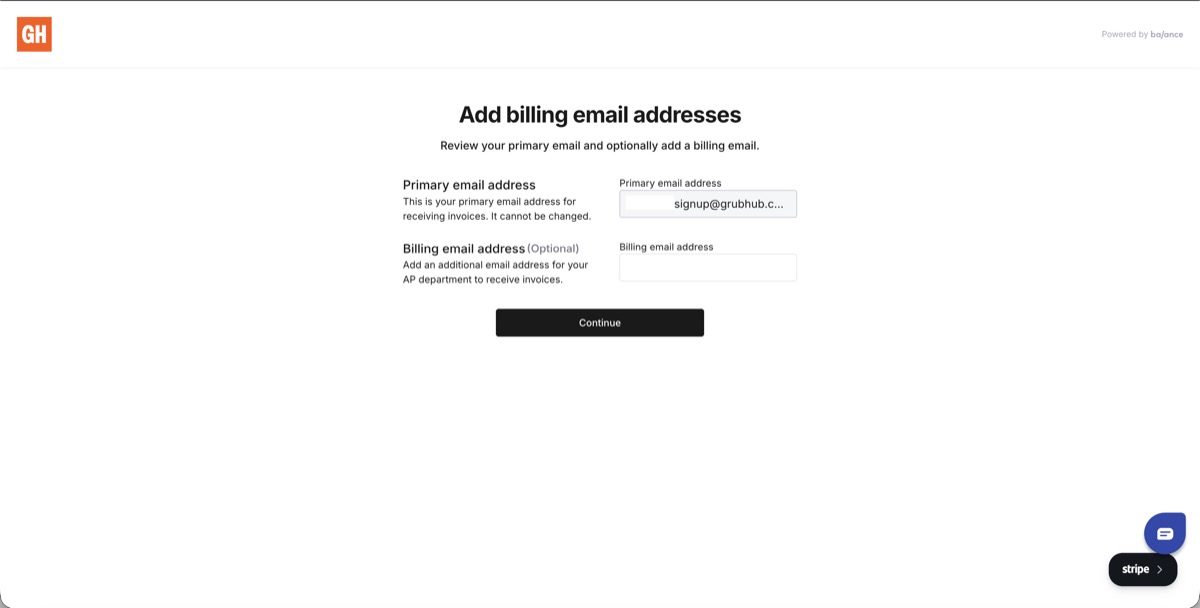
To finish setup and activation with Balance, please confirm your Primary email address for billing purposes.
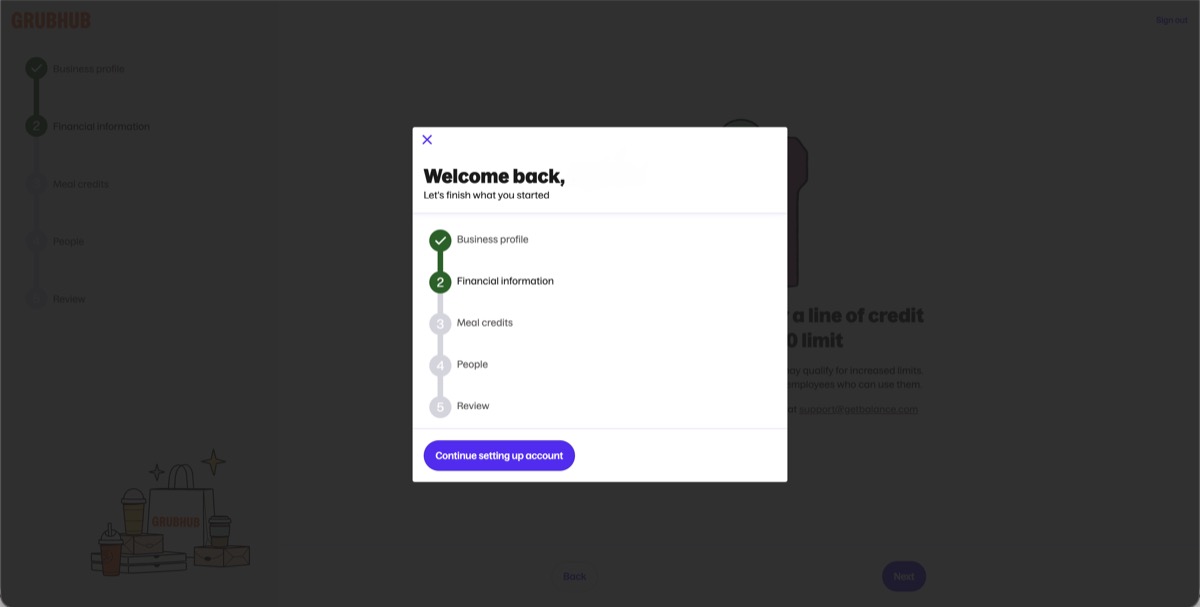
Once activated, you will be securely returned in the same window back to the Grubhub for Business platform to complete Account Setup.
Step Three: Meal Credits
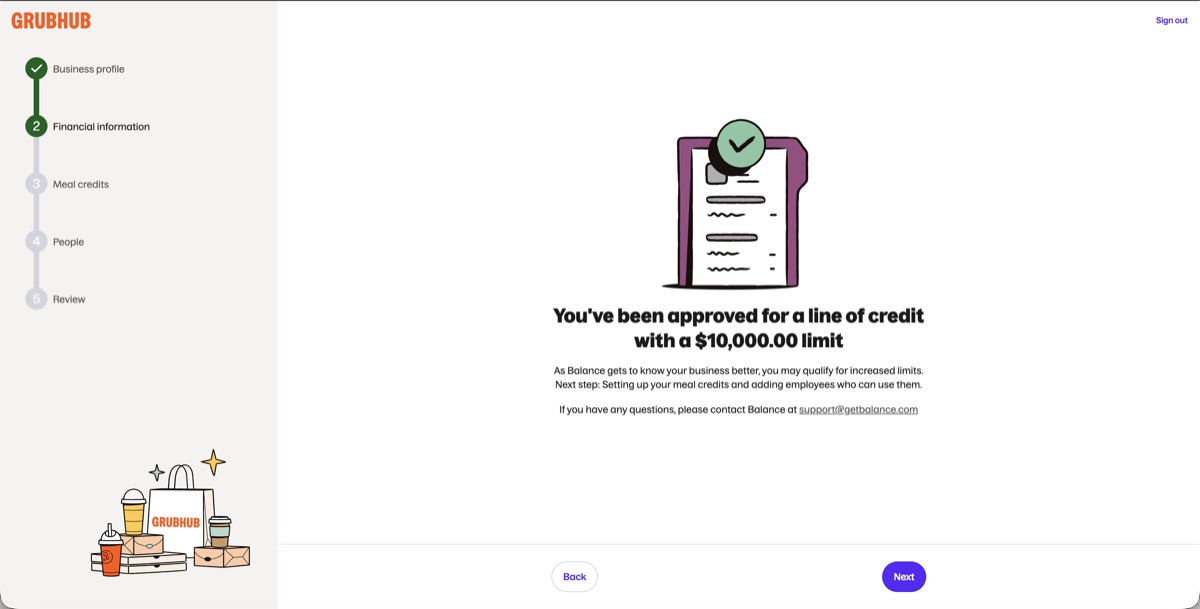
Now that you have returned to the Grubhub for Business platform, you can move forward with Account Setup.
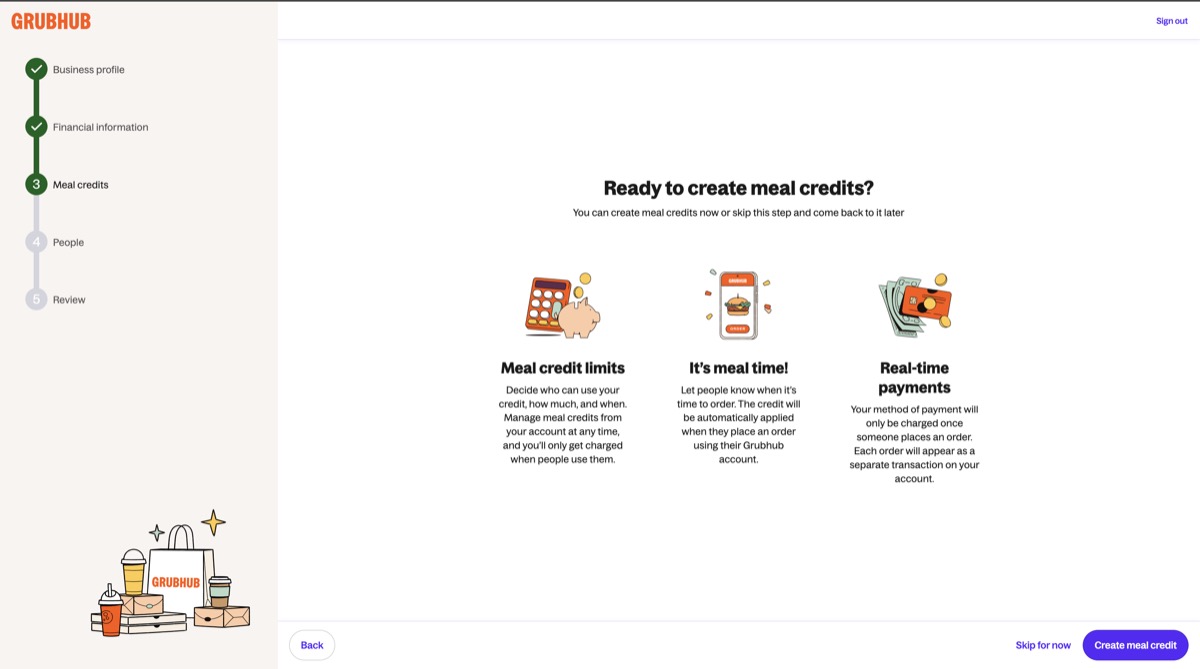
Here you have the opportunity to set up your Meal Credits for your employees in your organization to begin to utilize once your account is officially set up. If you choose to ‘Skip for now’, you can create meal credits later on in your Admin Portal.
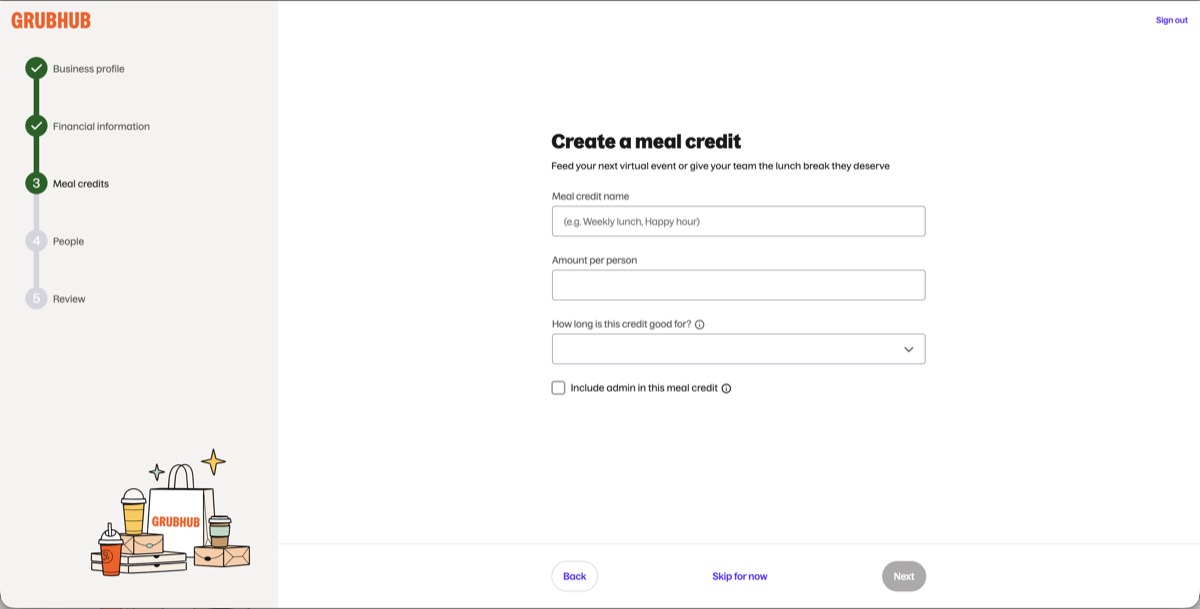
If you choose to create a Meal Credit, here you can set up basic parameters for use, including Meal Credit Name, Amount of Credit per person, and how long the credit is good for, including if you want this credit to be one-time or recurring.
Step Four (Employees):
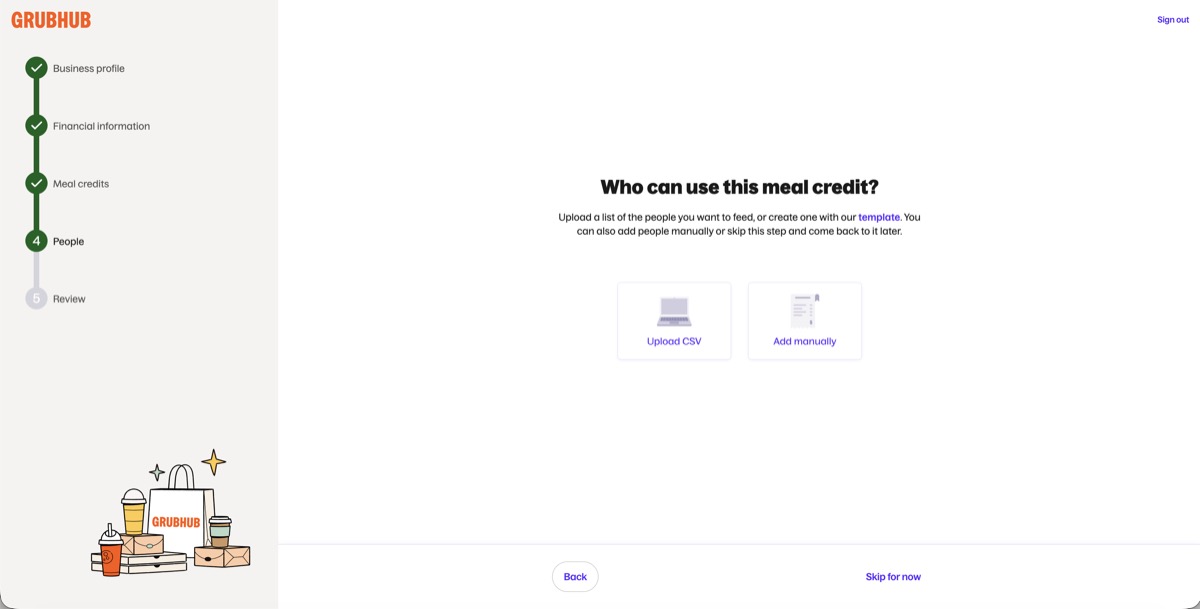
If you choose to at this time, you can Upload a List of individuals that you want to extend a Meal Credit to. You can do this by utilizing the linked template to upload a list of individuals, or add those individuals manually.
If you do not want to add individuals at this time, feel free to ‘Skip for now’ and come back to it at a later time!
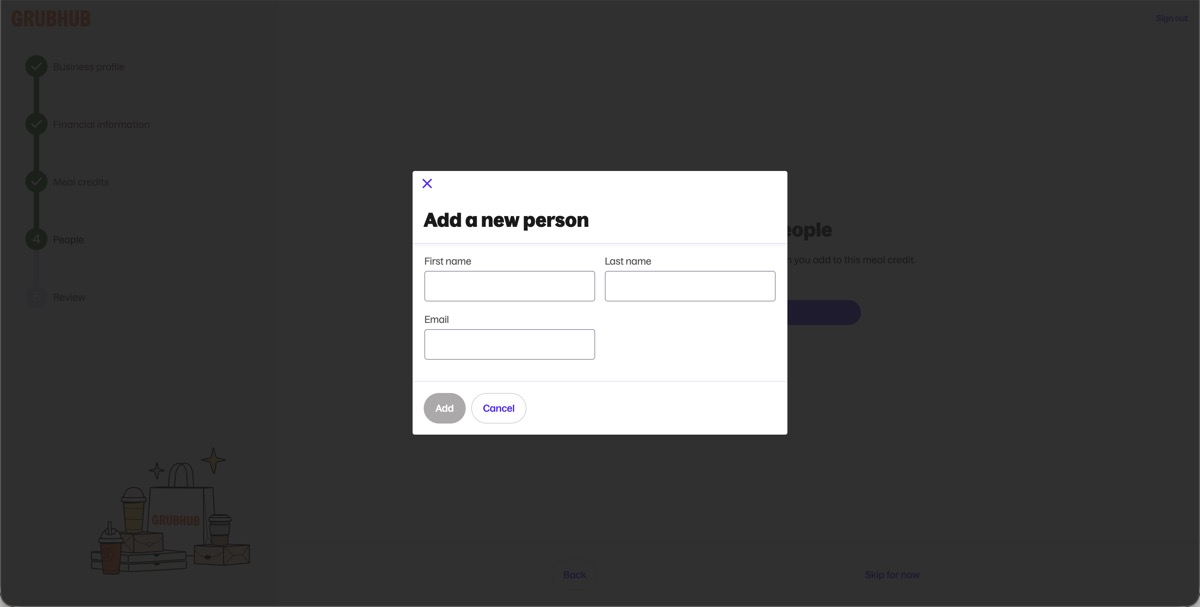
If you choose to add manually, please provide First Name, Last Name, and E-Mail.
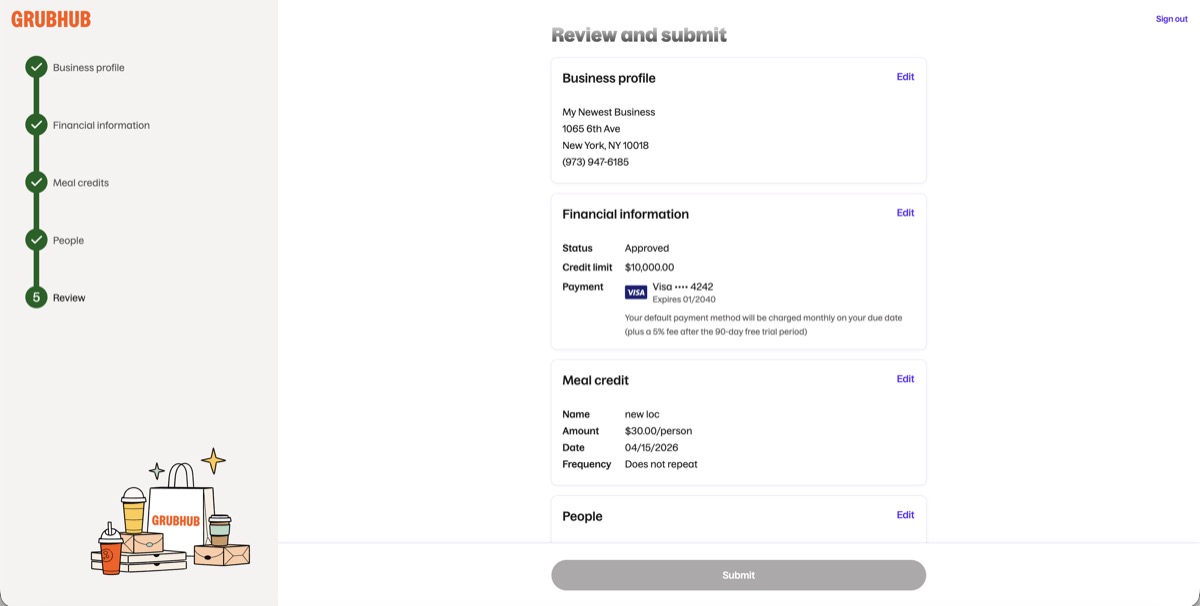
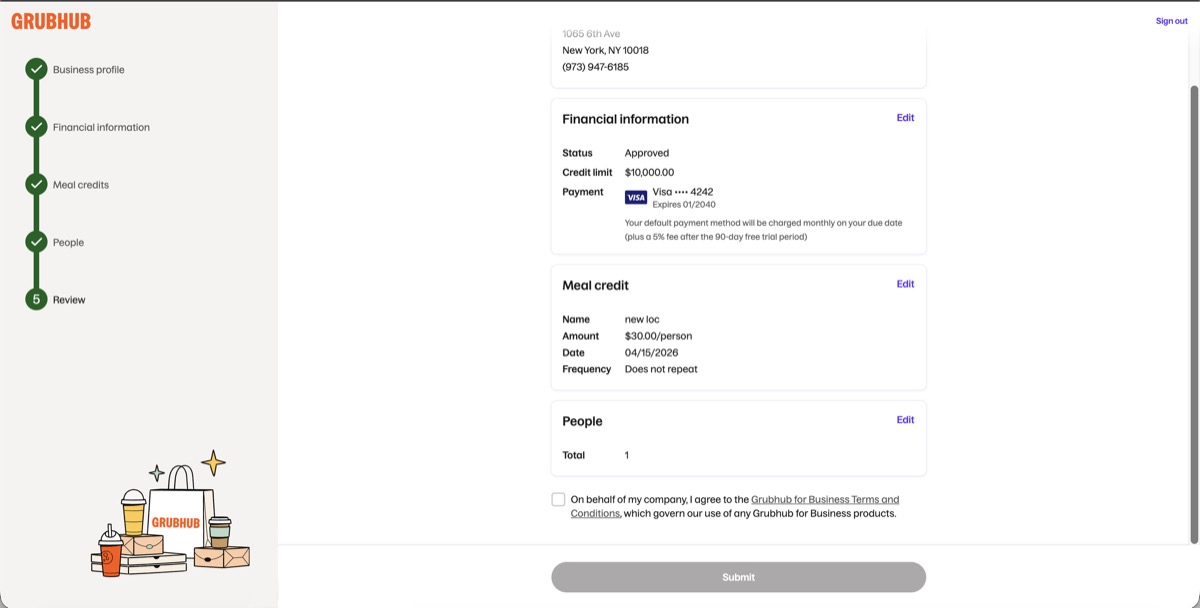
You’ve reached your final step before creation, here you can review your Account Details, including: Business Profile, Balance Verified Financial Information (for Net Terms or Spot Payments), Meal Credits (if added), People (if added).
Lastly, please Review the Grubhub for Business Terms of Service. Once reviewed, please check the box to agree to the Terms and Conditions and click ‘Submit’ to officially create your Grubhub for Business Self-Service Account.
Congratulations! Your Grubhub for Business Self-Service Account has officially been created. You and your business are officially active to begin ordering!