



How to sign into your account
You should have received a Welcome Email that allows you to create a password and access your new corporate profile. If you did not receive a Welcome Email, please contact your account administrator or visit www.Grubhub.com/login, click “reset password,” and enter your company email address to receive a new welcome email.
Once your password has been created, go to grubhub.com, click “Sign in” and enter your company email address and newly created password to get signed in.
How to access the Admin Portal
The Admin Portal is where you manage all aspects of your Corporate Account, from adding employees and creating meal credits to viewing invoices and order history.
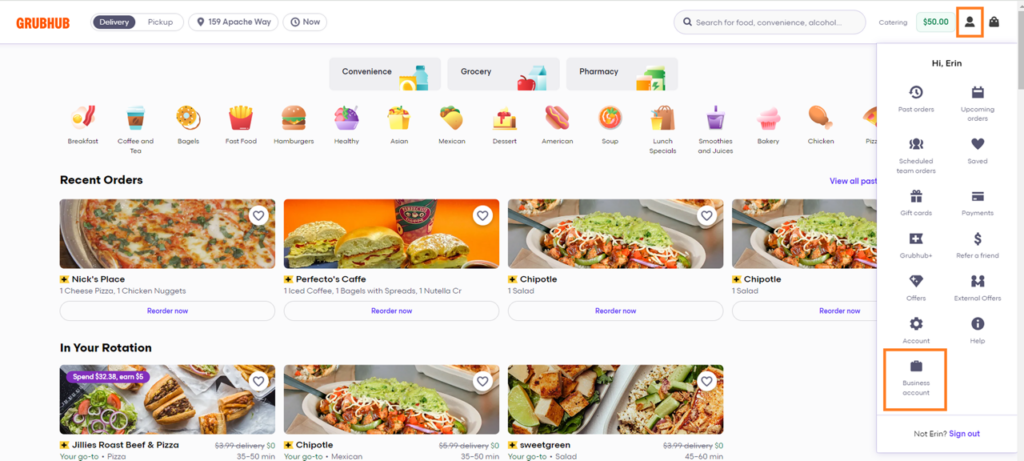
To access your Admin Portal, click on the person icon in the upper right corner of the homepage, then click the Business Account tab, labeled with a briefcase icon.